Expert.ai Filter Component
Expert.ai is an AI text analysis platform for legal, finance, and government organizations. As a Product Design Intern, I worked with the AI innovation team and directly with enterprise users to redesign the filtering system. Task time dropped from 2 minutes to 30 seconds. Support tickets about filtering fell by 42%.
Role
Product Design Intern
Duration
Jun – Sep 2022
TEAM
UX Engineer, Developer, PMs
TOOLS
Figma
Introduction
The current state of the filtering system
Expert.ai helps legal, finance, and government organizations analyze massive amounts of text. Think contracts, court rulings, financial reports, and regulatory filings. The Corpus platform is where users upload, organize, and filter their documents before running AI analysis. Filtering is how users narrow down thousands of documents to the ones that actually matter for their work.
Problem: In six months, the customer support team received 62 support tickets about filtering alone. Users were frustrated, and it was clear something needed to change.
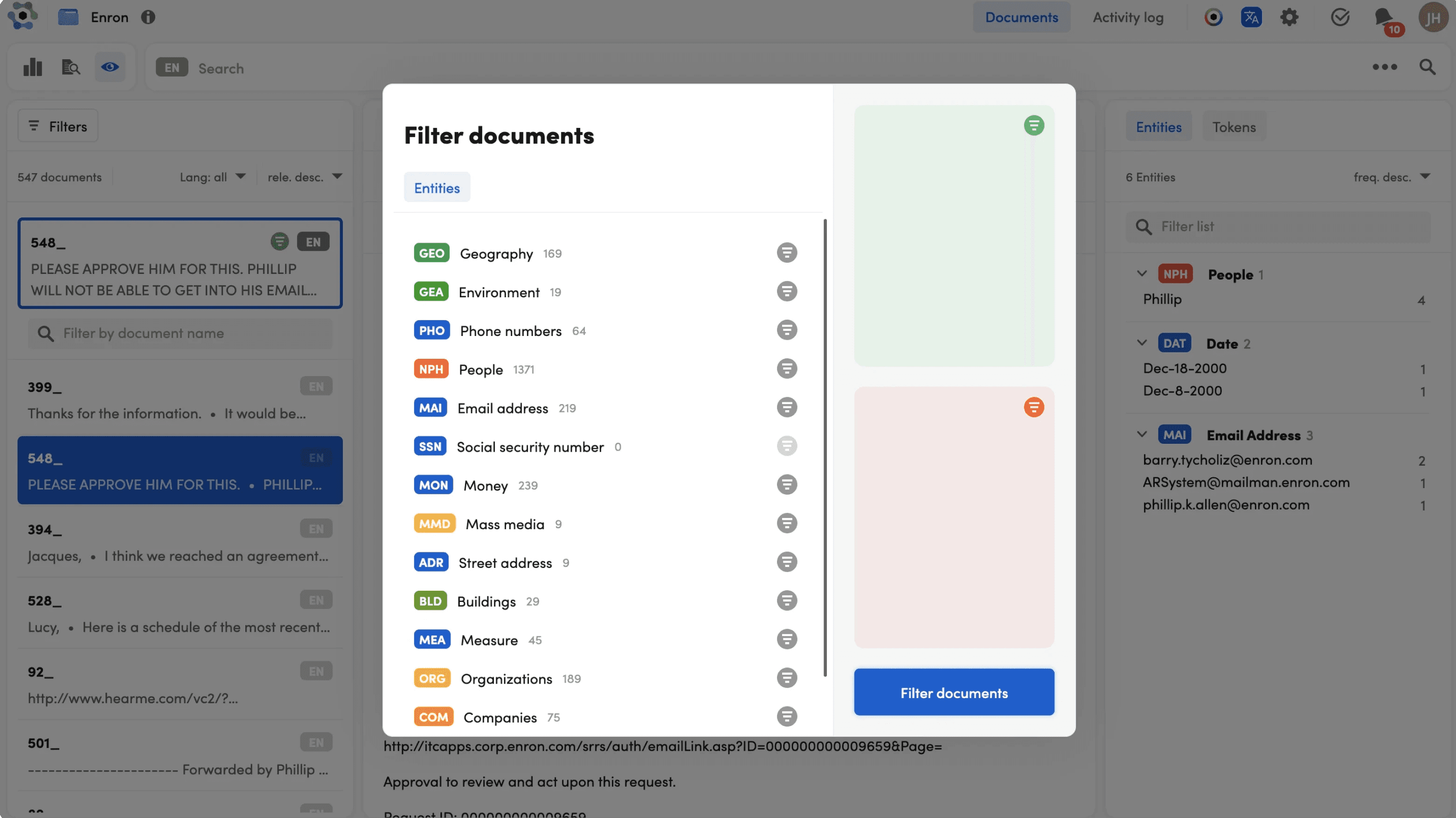
When users applied filters, the popup blocked their results completely. They would add a filter, close the popup to check, see they needed to adjust, reopen the popup, make a change, close it again, and repeat. Each time taking about 15 to 20 seconds. That added up fast.
challenge
How might we redesign filtering to be visible and reliable so users can filter efficiently?
Solution Preview
A faster, clearer, and more accessible way to filter.
A seamless dropdown filter panel with clear status indicators, accessible interface, and improved usability that work for everyone.
Research
What the support tickets showed
I met with the Customer Support Specialist and started reviewing the 62 support tickets. I also talked to the PM and a UX engineer to understand what had been tried before. The filtering component had been overdue for a redesign and although there was data,no one had pulled it together yet. Here is what I found.
Lack of visibility
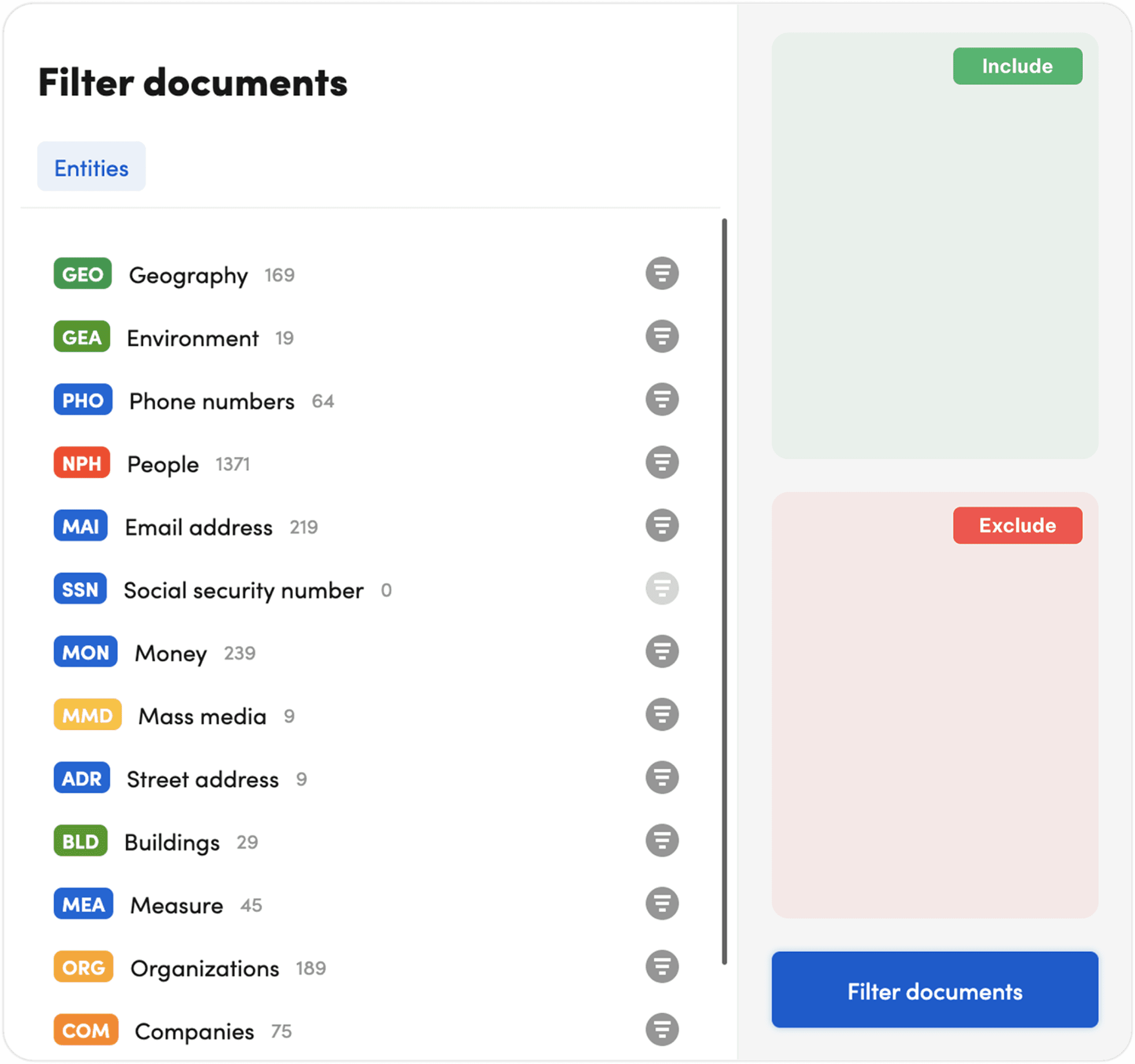
Users could not see which filters were active. The popup showed nothing once you closed it.
34 of 62 support tickets
High friction
Drag and drop often failed. Users had to try multiple times just to add a simple filter.
22 of 62 support tickets
Blocked results
The popup covered the entire screen. Users could not see their data while filtering.
47 of 62 support tickets
What everyday users experienced
I talked to 10 enterprise users across legal, finance, and government. What struck me was not just what they said, but how they adapted when the filter component did not meet their needs. One person added extra steps. Another abandoned a feature entirely. A third was not aware that the feature existed.
When multiple users find different workarounds for the same interface, the filter component was clearly the issue.

Legal Analyst
I have to close it every time just to check my work. Then open it again. Then close it. It is exhausting.

Government Contract Analyst
I gave up on drag and drop. I just type everything now.

Data Analyst w/ Colorblindness
I did not even know there were red and green indicators until someone told me.
Unexpected Find: Accessibility
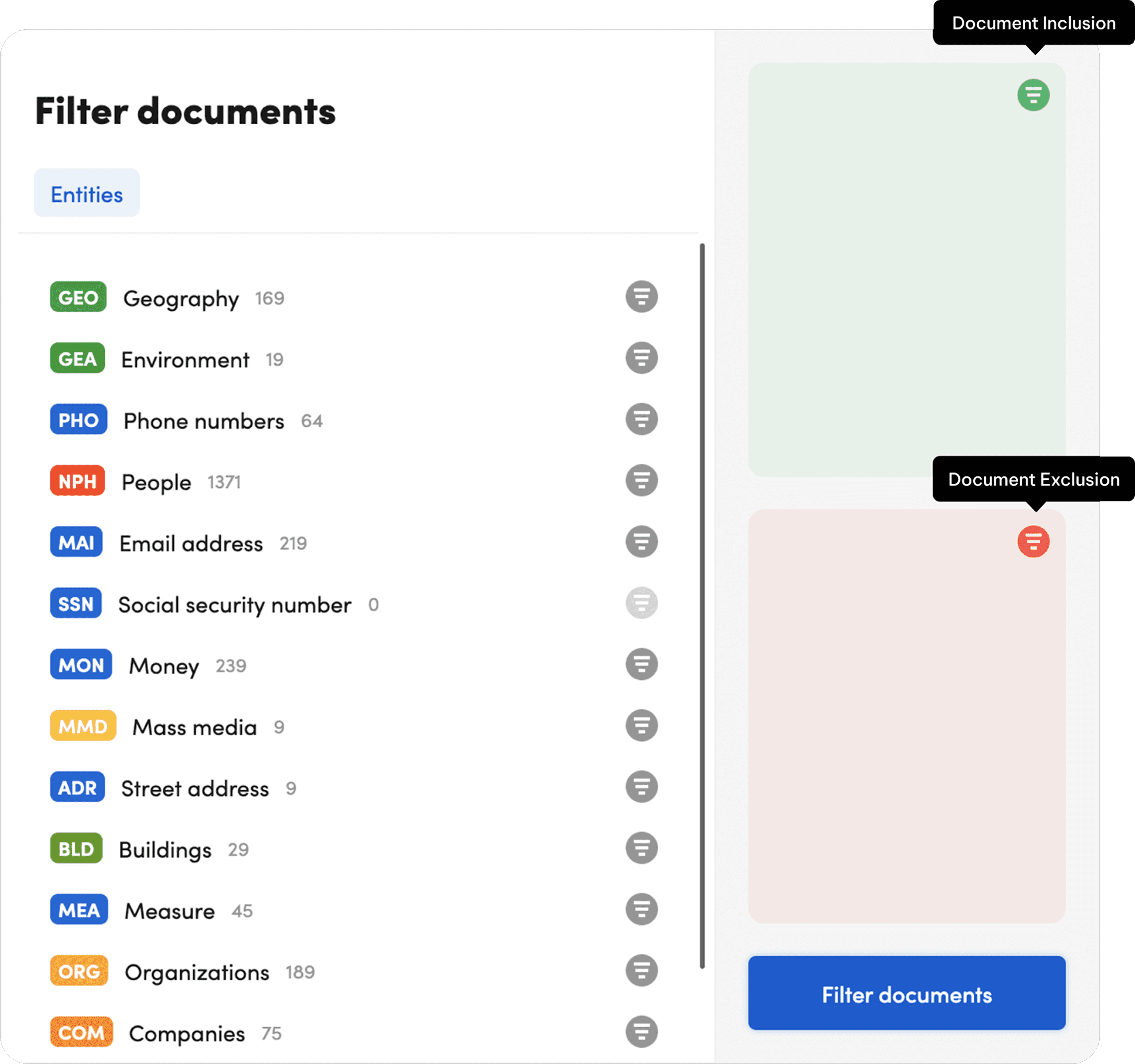
Several users also mentioned accessibility issues. The system used red and green to show exclusion and inclusion, which meant colorblind users could not tell them apart. The filtering system also required users to drag elements into inclusion and exclusion areas. For users who could not use a mouse, this was difficult.
This was not part of the original project scope, but I brought it up to my team and backed the case with user research. I mentioned how it could increase overall usability and improve things for everyone.
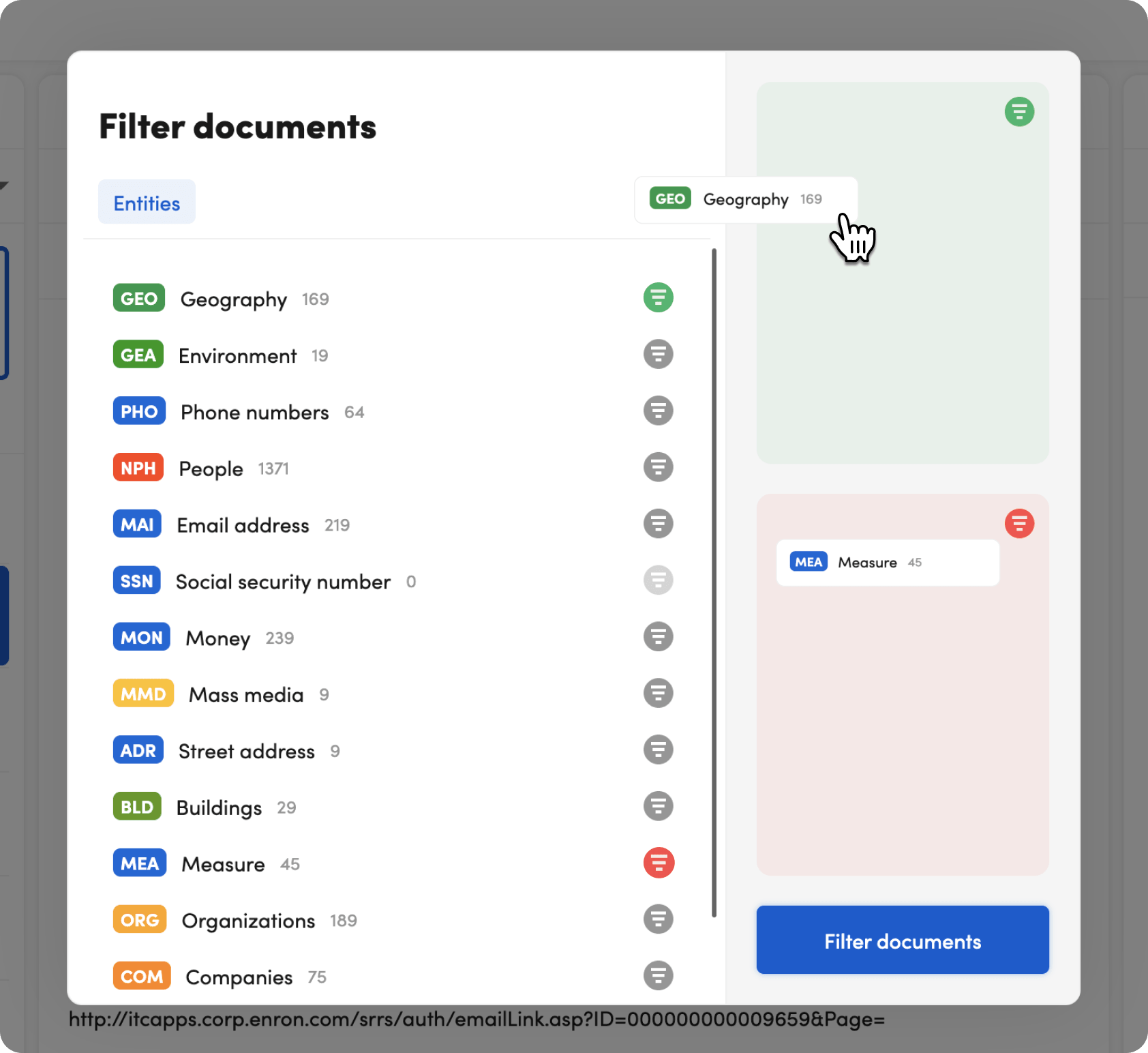
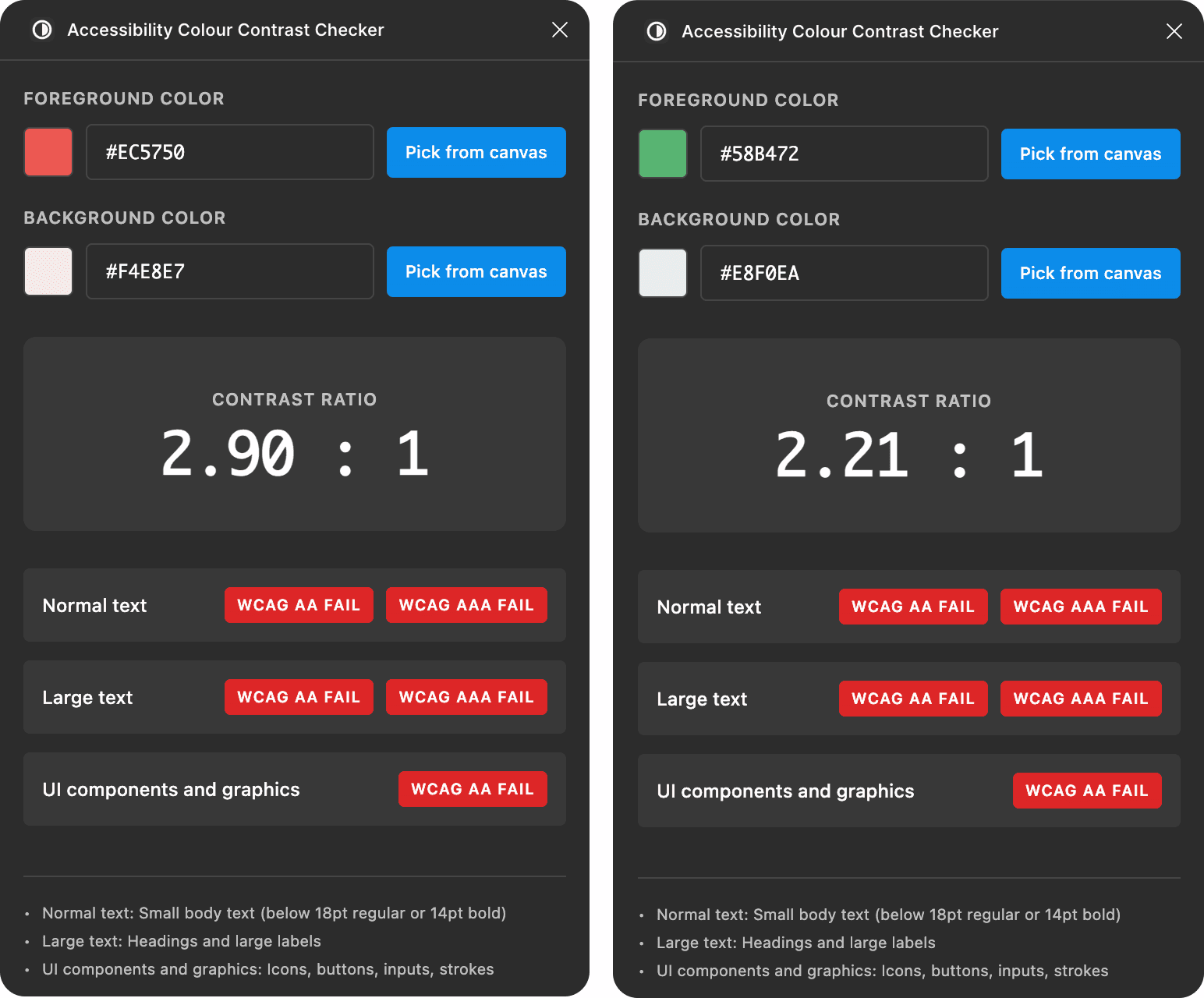
The original filter popup. It blocks results, uses red/green indicators, and requires drag and drop.
Developments
Technical Constraints
Although I had the go-ahead from my team to work on accessibility, I had to ensure that my design iterations were feasible with check-ins with the developers on my team and designers as well to ensure that it aligned with the design system. I touched base with both and the following are my takeaways that I brought when iterating the solutions.
Design System
The Lead Designer advised me that the filter component had to be built from design system elements. Also, to consider whether the solution could scale to other products.
Technical Feasibility
The developers asked me to check in with them early and often. They preferred annotated mockups so they could give async feedback before I went too far down any path.
Takeaway: The solution l had to come from the existing design system. I also had to balance accessibility improvements with what the team could realistically build in one sprint.
Wireframe exploration
Exploring Accessibility
With the defined constraints, my first attempt was conservative. I added labels inside the category buttons and tooltip labels on hover.
During a design critique, the Lead Designer pointed out that these changes helped with labeling but did not solve the core problems. The popup still blocked results. Drag and drop still slowed users w/ motor deficits. Results were still blocked.
I took this feedback and asked if I could explore a more rigorous solution. They said yes, as long as I stayed within the design system.
challenge (Revised)
How might we make filtering visible, reliable, and accessible so users can filter efficiently and independently?
Finalized Solution
After the design critique, I went ahead with a more rigorious approach that touched on the painpoints we've uncovered during research.
First, I fixed the layout. I made the filter panel compact so it no longer blocked the results. Users could finally see their data while filtering.
Second, I changed how filtering works. I embedded labels directly into the panel. Instead of dragging and dropping, users just click a label to change its state. One click to include, another to exclude, another to reset.
Third, I fixed the colors. I swapped red and green for blue and gray. The colors help, but every state also has a text label so no one has to rely on color alone.
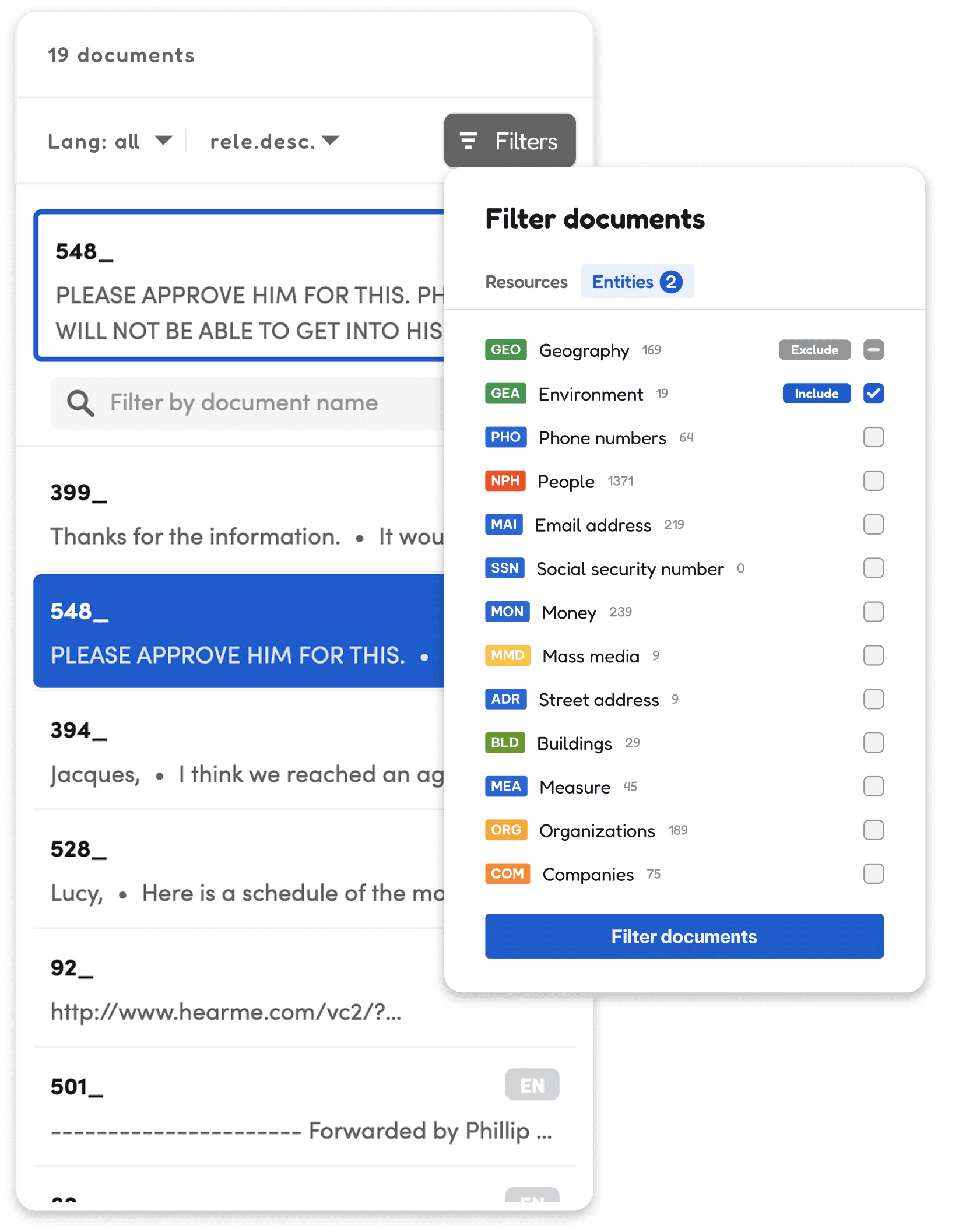
Filter DropDown
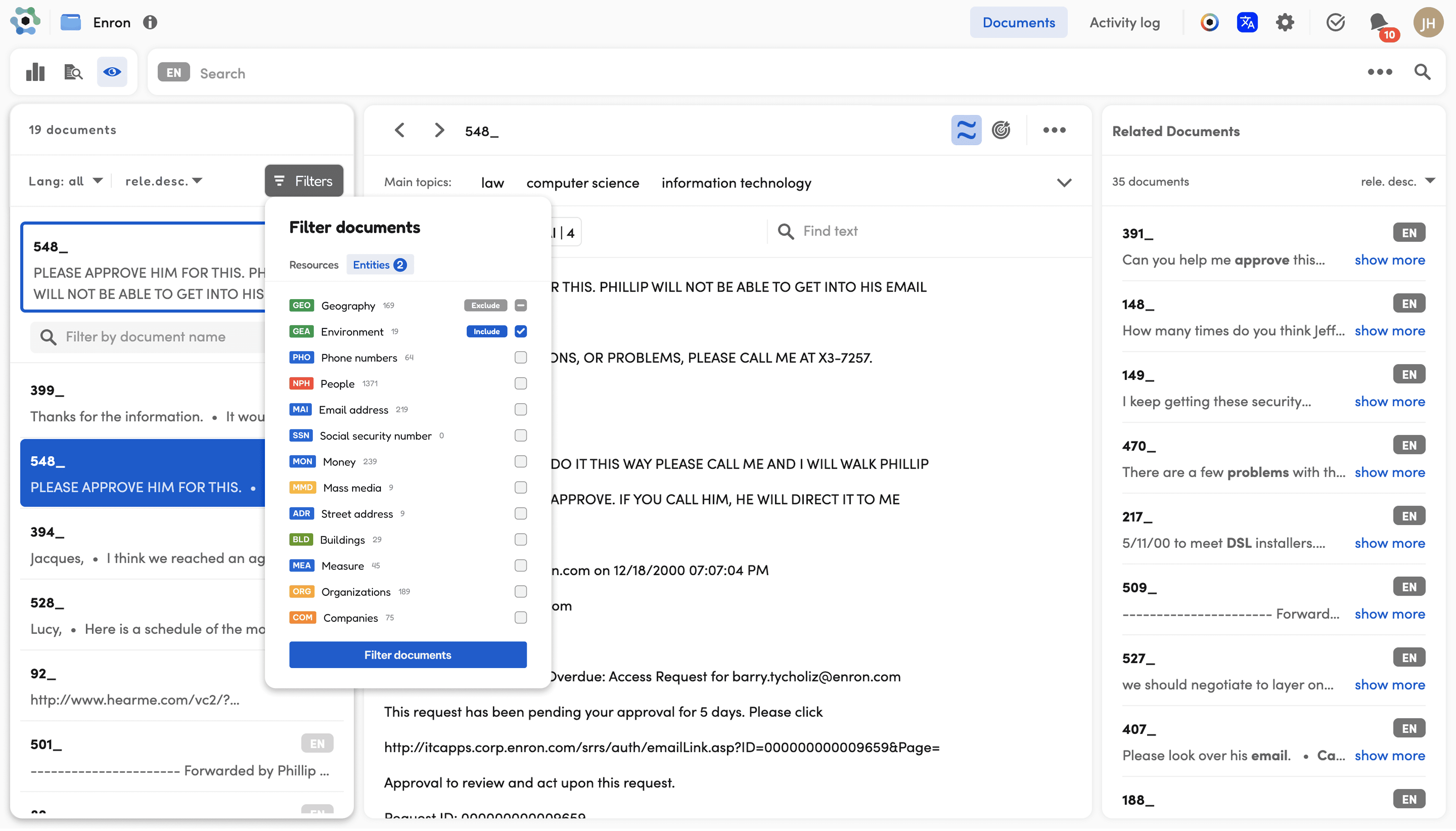
Filter Drop Down (integrated)
Checking in w/ Design and Technical Teams
Before moving to usability testing, I brought my dropdown panel back to the developers and the Lead Designer for feedback on feasibility and usability.
Lead Designer
Liked the consistency with the previous version
Suggested a more compact layout
Proposed making it horizontal and embedded into the screen

Developer
Confirmed the dropdown behaviors were feasible
Noted that clicking to change state was simpler than drag and drop
Said the timeline was manageable with the current approach
Takeaway: Both appreciated that the design was consistent with the design system. That helped with feasibility and timeline. I took both pieces of feedback: the consistency was good, the feasibility was solid, but I still had room to improve the layout.
Solution
New Filter Component
After incorporating feedback from the design critique and the technical team, I landed on a drop down filter panel. The panel sits alongside the results so users can see their data update in real time as they make selections.
NEW GUIDELINES
Click once to include a filter
Click twice to exclude
Click three times to reset
Blue and gray indicate status, with text labels for every state
Impact
Usability Testing and Impact
I ran usability testing with 8 enterprise users across legal, finance, and government. The Lead Designer observed the sessions with me. I asked each user to complete a series of filtering tasks while sharing their screen. I watched for moments of friction, what they clicked, and how long each task took.
task time
Task time dropped from 2 minutes to 30 seconds. Users could see their results while filtering and change states with a click.
Legal Analyst
"It's pretty neat that I can see the real time results on the side. The only thing I'm unsure of is how to exclude an item?"
support ticket frequency
After the redesign shipped, support tickets related to filtering fell by 42%.
Data Analyst w/ Colorblindness
"The content is pretty clear and I appreciate the multiple labels for clarity. I also like that there is no tedious dragging for filtering."
The Lead Designer and I noted that two users still hesitated when trying to reset a filter. The three click pattern (include, exclude, reset) was not obvious to everyone.
If I had more time, I would add a small indicator showing what each click would do and create an onboarding experience for first time users.
Reflection
Takeaways
This was my first UX Design internship, and I am so thankful to the Expert.ai AI Innovation team.
This experience taught me how much impact a small component can have on all types of users. The initial request was improving usability, but I learned that sometimes it takes reflection and initiative to reframe the problem. I discovered deeper issues with accessibility and advocated for that with user research while talking to the technical team through the process.
I am grateful to my team for supporting my initiative on accessibility and for their guidance!
Snippet of Final Presentation